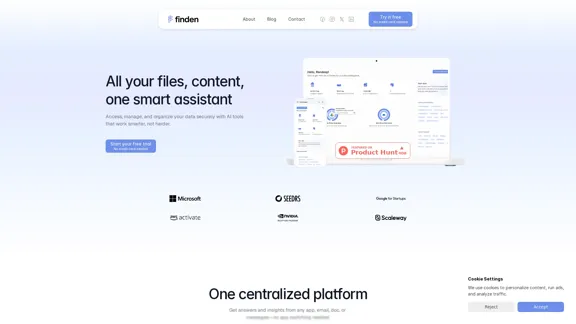
Finden is an AI-powered platform designed to streamline data management and enhance productivity. It allows users to access, manage, and organize their files across various storage locations seamlessly. With features that distill complex data into actionable insights, Finden accelerates decision-making and improves outcomes for both personal and business needs.
Finden - Echtzeit-Einblicke mit KI
Finden is an AI-powered tool that helps you manage, analyze, and extract insights from your data.
Introduction
Feature
-
Centralized Platform
Access insights from any app, email, document, or message without switching between applications.
-
Data Distillation
Converts messy spreadsheets and scattered dashboards into clear, actionable insights that enhance understanding of performance.
-
Accelerated Decision-Making
AI identifies key patterns and delivers instant clarity, enabling faster and more confident decision-making.
-
Outcome Improvement
Provides recommendations based on data analysis to boost impact, performance, and visibility.
-
Unified Data Access
Connects all storage and content in one place, allowing for easy management of files, documents, and media.
-
Smart File Organization
Automatically organizes data into smart folders, reducing clutter and improving accessibility.
-
Chat and Work with Your Data
Users can interact with their data naturally, with AI converting conversations into organized files or notes.
How to Use?
- Start your free trial on the Finden website without needing a credit card.
- Utilize the search feature to quickly find and share files across different cloud services and devices.
- Explore the analytics dashboard to monitor performance across multiple sources.
- Take advantage of AI-powered recommendations to identify areas for improvement.
- Use the chat feature to convert discussions into actionable documents or notes.
FAQ
What does Finden do?
Finden is an AI-driven platform that connects, organizes, and manages files across various storage locations, facilitating quick and seamless access and management.
How does Finden ensure data security?
Finden prioritizes data security with strict privacy measures, ensuring that user information remains safe and is only accessible to the user. All queries are processed through a private AI model, and data is not stored or used for training.
What storage services does Finden support?
Finden integrates with popular cloud storage services and local device storage, aiming to simplify data management across all platforms.
How does the referral program work?
Successful referrals occur when the referred person completes the sign-up process, earning the referrer an extra month of premium access for each successful referral.
Price
| Plan | Price | Features |
|---|---|---|
| Starter | $19.99/month | Basic analytics dashboard, monitor up to 3 sources, weekly performance reports, AI insights. |
| Professional | $29.99/month | Everything in Starter plus priority support, advanced insights, customizable dashboards. |
The price is for reference only, please refer to the latest official data for actual information.
Evaluation
Finden offers a robust solution for data management, effectively integrating various storage services and providing actionable insights. The AI capabilities enhance productivity by simplifying data access and organization.
However, there are areas for improvement. The platform could benefit from more advanced customization options for reports and dashboards. Additionally, while the AI provides valuable insights, users may require more guidance on interpreting these insights for optimal decision-making. Overall, Finden is a strong tool for individuals and teams looking to streamline their data management processes.
Related Websites
Copilot for Microsoft 365 – Microsoft Adoption Copilot for Microsoft 365 is a powerful AI assistant that helps you work smarter and faster across Microsoft 365 apps and services. It combines the power of large language models (LLMs) with your organization's data in the Microsoft Graph and Microsoft 365 apps to turn your words into the most powerful productivity tool on the planet. Copilot is designed to help you: • Unleash creativity • Unlock productivity • Uplevel skills Copilot is built on Microsoft's comprehensive approach to security, compliance, and privacy. Copilot in Microsoft 365 apps and services: • Does not use your data to train the underlying LLM • Does not replace human ingenuity and judgment • Is designed to keep humans in the loop Copilot is currently available in Word, Excel, PowerPoint, Outlook, Teams, and more. Getting Started with Copilot To get started with Copilot, follow these steps: 1. Check availability: Ensure your organization has access to Copilot. 2. Learn the basics: Familiarize yourself with Copilot's capabilities and how to use it effectively. 3. Explore use cases: Discover how Copilot can help you in your specific role and tasks. 4. Practice and refine: Use Copilot regularly and refine your prompts for better results. 5. Share and collaborate: Collaborate with colleagues using Copilot and share best practices. Best Practices for Using Copilot 1. Be specific in your prompts 2. Provide context for better results 3. Review and edit Copilot's output 4. Use Copilot as a starting point, not a final product 5. Experiment with different approaches 6. Stay informed about new features and updates Copilot in Different Microsoft 365 Apps • Word: Draft, edit, summarize, and rewrite content • Excel: Analyze data, create formulas, and generate insights • PowerPoint: Create presentations, design slides, and generate content • Outlook: Compose emails, summarize threads, and manage your inbox • Teams: Summarize meetings, generate action items, and create meeting notes Responsible AI and Copilot Microsoft is committed to developing AI systems responsibly. When using Copilot, keep in mind: • AI-generated content may contain biases or inaccuracies • Always review and verify Copilot's output • Use your judgment and expertise alongside Copilot's suggestions • Be aware of your organization's policies regarding AI use Conclusion Copilot for Microsoft 365 is a powerful tool that can significantly enhance your productivity and creativity. By understanding its capabilities, following best practices, and using it responsibly, you can make the most of this AI assistant in your daily work.
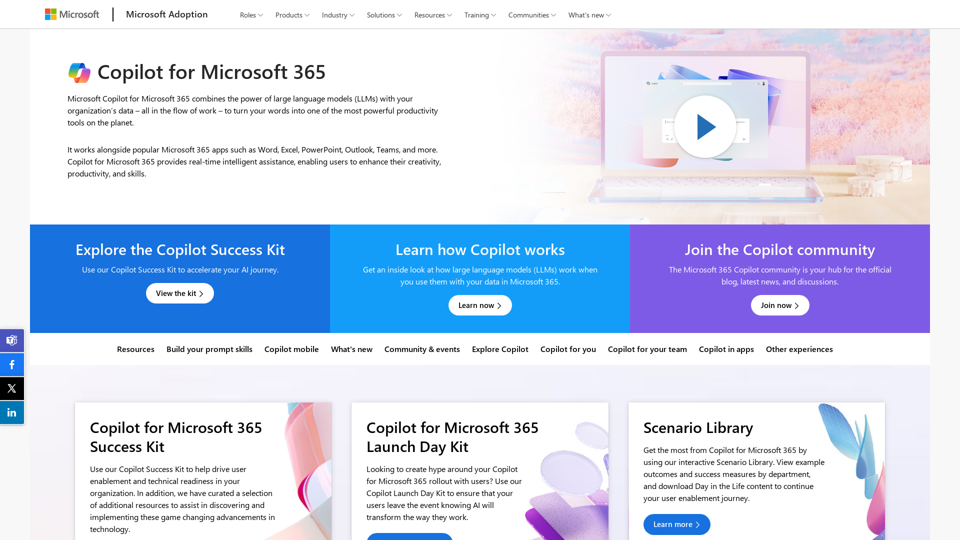
Copilot for Microsoft 365 – Microsoft Adoption Copilot for Microsoft 365 is a powerful AI assistant that helps you work smarter and faster across Microsoft 365 apps and services. It combines the power of large language models (LLMs) with your organization's data in the Microsoft Graph and Microsoft 365 apps to turn your words into the most powerful productivity tool on the planet. Copilot is designed to help you: • Unleash creativity • Unlock productivity • Uplevel skills Copilot is built on Microsoft's comprehensive approach to security, compliance, and privacy. Copilot in Microsoft 365 apps and services: • Does not use your data to train the underlying LLM • Does not replace human ingenuity and judgment • Is designed to keep humans in the loop Copilot is currently available in Word, Excel, PowerPoint, Outlook, Teams, and more. Getting Started with Copilot To get started with Copilot, follow these steps: 1. Check availability: Ensure your organization has access to Copilot. 2. Learn the basics: Familiarize yourself with Copilot's capabilities and how to use it effectively. 3. Explore use cases: Discover how Copilot can help you in your specific role and tasks. 4. Practice and refine: Use Copilot regularly and refine your prompts for better results. 5. Share and collaborate: Collaborate with colleagues using Copilot and share best practices. Best Practices for Using Copilot 1. Be specific in your prompts 2. Provide context for better results 3. Review and edit Copilot's output 4. Use Copilot as a starting point, not a final product 5. Experiment with different approaches 6. Stay informed about new features and updates Copilot in Different Microsoft 365 Apps • Word: Draft, edit, summarize, and rewrite content • Excel: Analyze data, create formulas, and generate insights • PowerPoint: Create presentations, design slides, and generate content • Outlook: Compose emails, summarize threads, and manage your inbox • Teams: Summarize meetings, generate action items, and create meeting notes Responsible AI and Copilot Microsoft is committed to developing AI systems responsibly. When using Copilot, keep in mind: • AI-generated content may contain biases or inaccuracies • Always review and verify Copilot's output • Use your judgment and expertise alongside Copilot's suggestions • Be aware of your organization's policies regarding AI use Conclusion Copilot for Microsoft 365 is a powerful tool that can significantly enhance your productivity and creativity. By understanding its capabilities, following best practices, and using it responsibly, you can make the most of this AI assistant in your daily work.Microsoft Copilot combines the power of large language models (LLMs) with your organization's data to turn your words into one of the most powerful productivity tools on the planet.
608.60 K


Clean Inbox for Gmail™ | A Gmail addon with GPT powered filters to avoid unwanted email, spam and marketing email
Clean Inbox for Gmail™ | A Gmail addon with GPT powered filters to avoid unwanted email, spam and marketing emailClean Inbox for Gmail™ | A Gmail addon with GPT powered filters to avoid unwanted email, spam and marketing email.
2.73 K
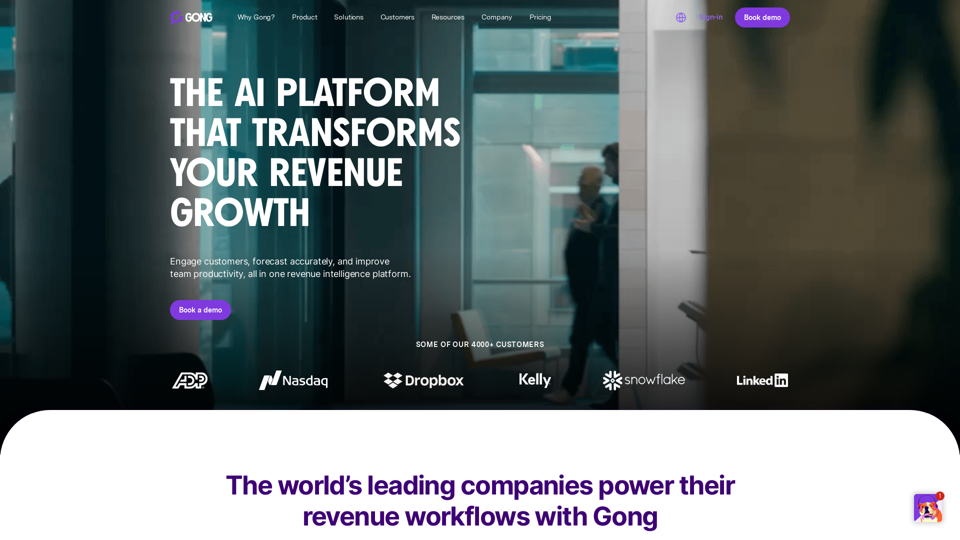
Gong captures customer interactions and then delivers insights at scale, enabling teams to make decisions based on data rather than opinions.
1.95 M
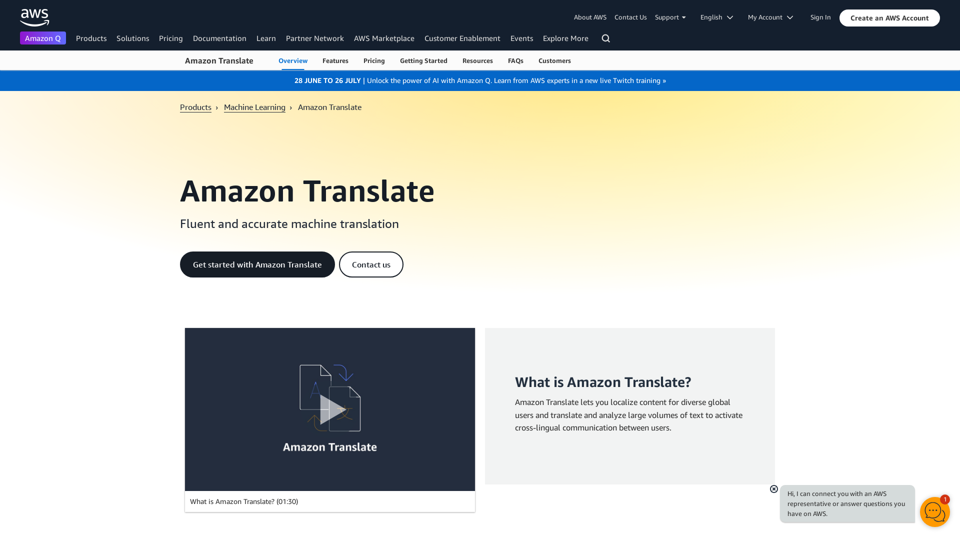
Machine Translation - Amazon Translate - AWS Amazon Translate is a neural machine translation service that delivers fast, high-quality, and affordable language translation. Amazon Translate allows you to localize content - such as websites and applications - for international users, and to easily translate large volumes of text efficiently. How it works 1. Input text 2. Amazon Translate 3. Output text Use cases • Multilingual user experience • Cross-lingual communication • Content analysis in multiple languages Benefits • High-quality translations • Easy to use • Cost-effective • Scalable • Secure and compliant Features • Neural machine translation • Custom terminology • Batch translation • Real-time translation • Language detection • Profanity filtering
Machine Translation - Amazon Translate - AWS Amazon Translate is a neural machine translation service that delivers fast, high-quality, and affordable language translation. Amazon Translate allows you to localize content - such as websites and applications - for international users, and to easily translate large volumes of text efficiently. How it works 1. Input text 2. Amazon Translate 3. Output text Use cases • Multilingual user experience • Cross-lingual communication • Content analysis in multiple languages Benefits • High-quality translations • Easy to use • Cost-effective • Scalable • Secure and compliant Features • Neural machine translation • Custom terminology • Batch translation • Real-time translation • Language detection • Profanity filteringAmazon Translate, a neural machine translation service, uses deep learning to deliver more accurate and natural translation than traditional algorithms.
60.83 M
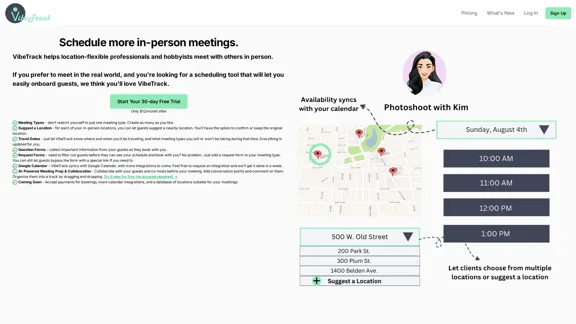
VibeTrack is a scheduling tool designed for location-flexible professionals and hobbyists who prefer in-person meetings.
0
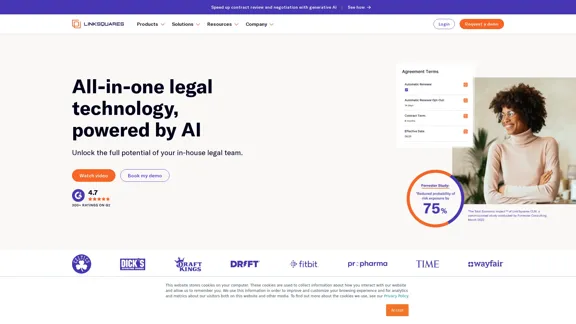
AI-Powered Contract Management for Legal Teams | LinkSquares
AI-Powered Contract Management for Legal Teams | LinkSquaresLegal teams depend on LinkSquares for effortless agreement drafting, reviewing, and execution using AI-powered contract lifecycle management and project management software.
81.95 K