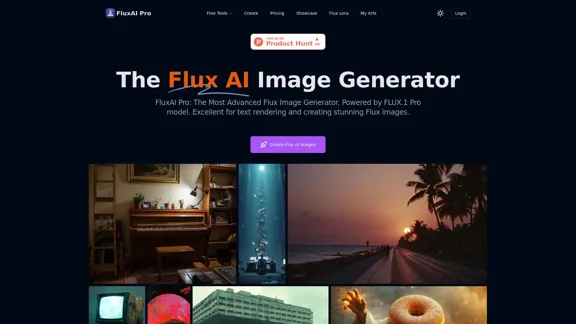
FluxAI Pro is an advanced AI-powered image generation platform that utilizes the FLUX.1 Pro model. It excels in creating high-quality images with exceptional text rendering capabilities. The platform offers various models, including FLUX.1 Pro, Dev, and Schnell, each tailored for different use cases ranging from professional applications to rapid prototyping.
FluxAI Pro - Advanced Flux Image Generator
FluxAI Pro: Superior Flux Image Generator with exceptional text rendering. Powered by FLUX.1 Pro, Dev, Schnell and Realism models.
Introduction
Feature
| Feature | Description |
|---|---|
| Advanced AI Architecture | FLUX.1 models use cutting-edge transformer-based flow technology, scaled to 12 billion parameters for top performance. |
| Exceptional Image Quality | Generate high-res images up to 2.0 megapixels with remarkable detail, supporting various aspect ratios. |
| Precise Prompt Adherence | Superior text-to-image synthesis with exceptional ability to interpret and faithfully render complex prompts. |
| Versatile Model Options | Choose from FLUX.1 Pro, Dev, and Schnell variants, each tailored for different use cases. |
| Flexible Access Methods | Access through API integration, platforms like Replicate and fal.ai, or explore open-weight versions for non-commercial projects. |
| Innovative Text Rendering | Advanced capabilities in rendering clear, readable text within generated images. |
How to Use?
- Start with 100 free credits upon signing up.
- Experiment with different FLUX.1 models to find the best fit for your needs.
- Use the Flux Prompt Generator to enhance your prompts for better results.
- Consider purchasing additional credits to unlock more features like private mode and safety tolerance adjustment.
- Explore the community showcase for inspiration from other users' creations.
- Try different aspect ratios to suit your specific image requirements.
- For commercial use, ensure you're using the appropriate model and license.
FAQ
What makes FLUX.1 models unique?
FLUX.1 models stand out with excellent prompt following, superior visual quality, intricate image detail, and diverse outputs across various styles and subjects.
Can I use FluxAI Pro for commercial purposes?
Yes, FluxAI Pro and its FLUX.1 models are suitable for both personal and commercial use, meeting professional standards for various applications.
How often are the FLUX.1 models updated?
The developers are committed to continuous improvement, regularly updating FLUX.1 models to enhance capabilities and performance.
What image sizes can I generate?
Both free and paid users can choose from various aspect ratios: Square (512x512), Square HD (1024x1024), Portrait 4:3 (768x1024), Portrait 16:9 (576x1024), Landscape 4:3 (1024x768), and Landscape 16:9 (1024x576).
How do credits work in FluxAI Pro?
Credits are used to generate images. The credit cost varies by model: FLUX.1 Schnell (1 credit), FLUX.1 Dev (10 credits), and FLUX.1 Pro (20 credits). Free users receive a set number of credits each month.
Price
The website does not provide specific pricing information. However, it mentions a free plan with 100 credits for new users and the option to purchase additional credits for more features and image generation.
The price is for reference only, please refer to the latest official data for actual information.
Evaluation
-
FluxAI Pro offers a robust set of features, including high-quality image generation, versatile model options, and advanced text rendering capabilities, making it a strong contender in the AI image generation market.
-
The platform's focus on prompt adherence and image quality sets it apart from some competitors, potentially making it more suitable for professional or detailed work.
-
The credit system and model-specific pricing could be more transparent, as the website lacks clear information on subscription plans or exact costs for additional credits.
-
While the platform offers commercial usage, the distinction between open-source and proprietary models may require careful consideration for users with specific licensing needs.
-
The regular updates and community showcase demonstrate a commitment to improvement and user engagement, which is a positive aspect of the platform.
-
More information on the ethical considerations and content moderation policies would be beneficial for users concerned about responsible AI use.
Related Websites
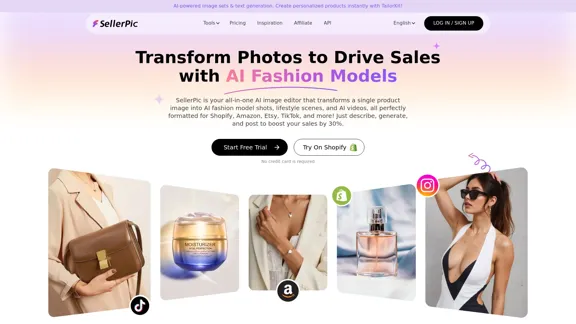
SellerPic: AI Fashion Models and Product Image Creator
SellerPic: AI Fashion Models and Product Image CreatorTransform your eCommerce store with AI Fashion Models and AI Product Images. Create stunning images that drive sales and revenue. Try it FREE!
203.22 K
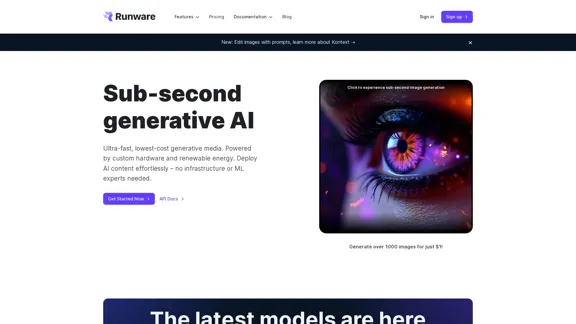
The most affordable and flexible image generation API. Easily deploy blazing-fast AI features in any app. Start today and create 1000 images for free.
202.36 K
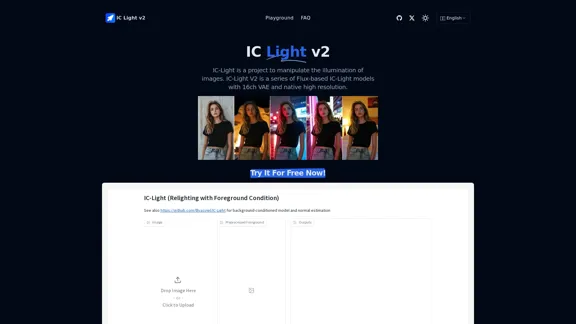
IC-Light is a project to manipulate the illumination of images. IC-Light V2 is a series of Flux-based IC-Light models with 16ch VAE and native high resolution.
0
Explore a collection of unique, AI-generated doodles. Doodle Agent provides insights into the world of creative doodles. See the future of digital art now!
0
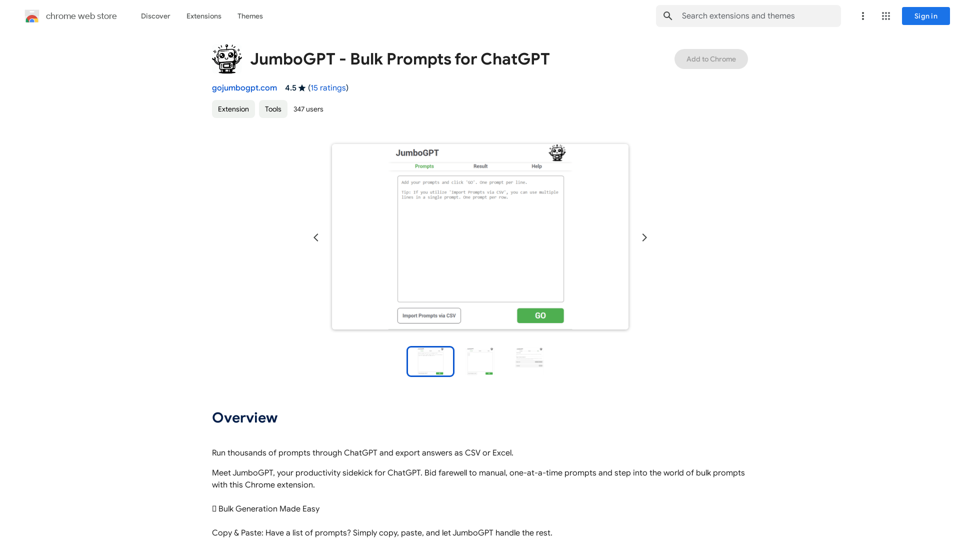
JumboGPT - Bulk Prompts for ChatGPT This is a collection of bulk prompts for ChatGPT, designed to help you explore its capabilities and generate diverse creative text formats. Instructions: * Each prompt is designed to be used individually with ChatGPT. * You can copy and paste the prompts directly into the ChatGPT interface. * Feel free to modify the prompts to suit your specific needs and interests. Categories: * Story Starters: > A lone astronaut stumbles upon a derelict spaceship... > The old woman sat on the park bench, watching the children play... > A mysterious package arrived on her doorstep, addressed simply to "The Keeper"... * Creative Writing: > Write a short poem about the feeling of nostalgia. > Compose a song about a robot who falls in love with a human. > Describe a world where animals can talk. * Dialogue Prompts: > Two friends argue about the best way to spend a weekend. > A detective interrogates a suspect in a murder case. > A parent tries to explain a difficult concept to their child. * Worldbuilding: > Create a detailed description of a fantasy city. > Design a new species of creature for a science fiction story. > Develop a unique magic system for a medieval world. * Code Generation: > Write a Python function to calculate the factorial of a number. > Generate HTML code for a simple webpage. > Create a SQL query to retrieve data from a database. * Humor: > Write a joke about a programmer. > Create a funny story about a talking cat. > Generate a list of puns about food. * Educational: > Explain the concept of photosynthesis in simple terms. > Summarize the main events of the American Revolution. > Provide a brief history of the development of the internet.
JumboGPT - Bulk Prompts for ChatGPT This is a collection of bulk prompts for ChatGPT, designed to help you explore its capabilities and generate diverse creative text formats. Instructions: * Each prompt is designed to be used individually with ChatGPT. * You can copy and paste the prompts directly into the ChatGPT interface. * Feel free to modify the prompts to suit your specific needs and interests. Categories: * Story Starters: > A lone astronaut stumbles upon a derelict spaceship... > The old woman sat on the park bench, watching the children play... > A mysterious package arrived on her doorstep, addressed simply to "The Keeper"... * Creative Writing: > Write a short poem about the feeling of nostalgia. > Compose a song about a robot who falls in love with a human. > Describe a world where animals can talk. * Dialogue Prompts: > Two friends argue about the best way to spend a weekend. > A detective interrogates a suspect in a murder case. > A parent tries to explain a difficult concept to their child. * Worldbuilding: > Create a detailed description of a fantasy city. > Design a new species of creature for a science fiction story. > Develop a unique magic system for a medieval world. * Code Generation: > Write a Python function to calculate the factorial of a number. > Generate HTML code for a simple webpage. > Create a SQL query to retrieve data from a database. * Humor: > Write a joke about a programmer. > Create a funny story about a talking cat. > Generate a list of puns about food. * Educational: > Explain the concept of photosynthesis in simple terms. > Summarize the main events of the American Revolution. > Provide a brief history of the development of the internet.Use ChatGPT to process many different questions and save the responses in a spreadsheet format like CSV or Excel.
193.90 M
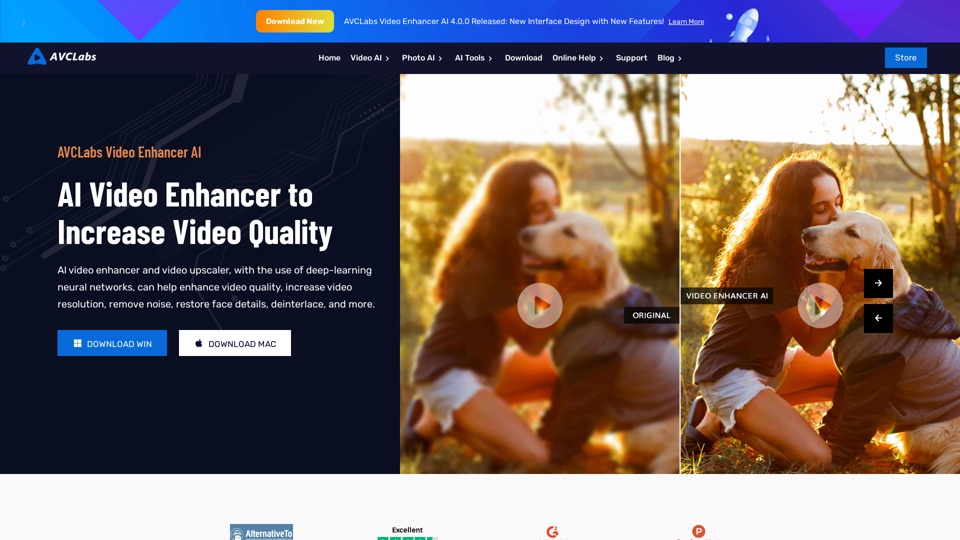
AVCLabs AI: Enhance Your Video and Photo Quality with AI
AVCLabs AI: Enhance Your Video and Photo Quality with AIAVCLabs is an AI products provider, which is dedicated to serving customers with products including Video Enhancer, Photo Editor, Photo Enhancer, and Video Blur AI.
356.07 K